Introduction
11 minute read
MCP Toolbox for Databases is an open source Model Context Protocol (MCP) server that connects your AI agents, IDEs, and applications directly to your enterprise databases.
It serves a dual purpose:
- Ready-to-use MCP Server (aka ‘Build-Time’): Instantly connect Gemini CLI, Google Antigravity, Claude Code, Codex, or other MCP clients to your databases using our prebuilt generic tools. Talk to your data, explore schemas, and generate code without writing boilerplate.
- Custom Tools Framework (aka ‘Run-Time’): A robust framework to build specialized, highly secure AI tools for your production agents. Define structured queries, semantic search, and NL2SQL capabilities safely and easily.
Note
This document has been updated to support the flat configuration file format. To view documentation with original configuration file format, please navigate to the top-right menu and select versions v0.26.0 or older.
Why MCP Toolbox?
- Out-of-the-Box Database Access: Prebuilt generic tools for instant data exploration (e.g.,
list_tables,execute_sql) directly from your IDE or CLI. - Custom Tools Framework: Build production-ready tools with your own predefined logic, ensuring safety through Restricted Access, Structured Queries, and Semantic Search.
- Simplified Development: Integrate tools into your Agent Development Kit (ADK), LangChain, LlamaIndex, or custom agents in less than 10 lines of code.
- Better Performance: Handles connection pooling, integrated auth (IAM), and end-to-end observability (OpenTelemetry) out of the box.
- Enhanced Security: Integrated authentication for more secure access to your data.
- End-to-end Observability: Out of the box metrics and tracing with built-in support for OpenTelemetry.
Note
This solution was originally named “Gen AI Toolbox for Databases” as its initial development predated MCP, but was renamed to align with the added MCP compatibility.
General Architecture
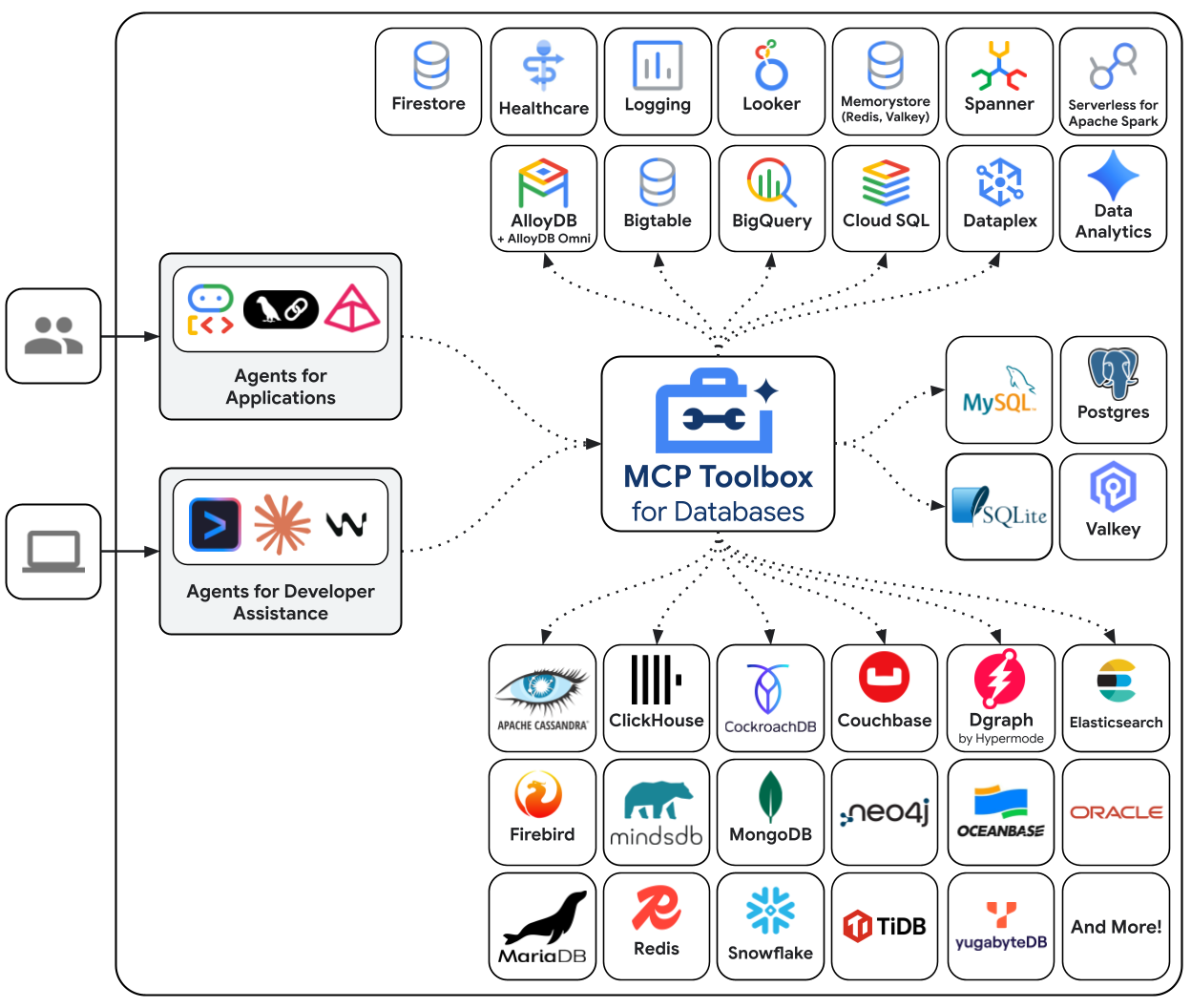
Toolbox sits between your application’s orchestration framework and your database, providing a control plane that is used to modify, distribute, or invoke tools. It simplifies the management of your tools by providing you with a centralized location to store and update tools, allowing you to share tools between agents and applications and update those tools without necessarily redeploying your application.
Getting Started
Quickstart: Running Toolbox using NPX
Ready-to-use MCP tools
Add the following to your client’s MCP configuration file (usually mcp.json or claude_desktop_config.json):
{
  "mcpServers": {
    "toolbox-postgres": {
      "command": "npx",
      "args": [
        "-y",
        "@toolbox-sdk/server",
        "--prebuilt=postgres"
      ]
    }
  }
}
Set the appropriate environment variables to connect, see the Prebuilt Tools Reference.
When you run Toolbox with a --prebuilt=<database> flag, you instantly get access to standard tools to interact with that database.
Supported databases currently include:
- Google Cloud: AlloyDB, BigQuery, Cloud SQL (PostgreSQL, MySQL, SQL Server), Spanner, Firestore, Dataplex
- Other Databases: PostgreSQL, MySQL, SQL Server, Oracle, MongoDB, Redis, Elasticsearch, CockroachDB, ClickHouse, Couchbase, Neo4j, Snowflake, Trino, and more.
For a full list of available tools and their capabilities across all supported databases, see the Prebuilt Tools Reference.
Custom Tools
You can run Toolbox directly with a configuration file:
npx @toolbox-sdk/server --config tools.yaml
Note
This method is optimized for convenience rather than performance. For a more standard and reliable installation, please use the binary or container image as described in Install Toolbox.
Install Toolbox
For the latest version, check the releases page and use the following instructions for your OS and CPU architecture.
To install Toolbox as a binary on Linux (AMD64):
# see releases page for other versions
export VERSION=0.31.0
curl -L -o toolbox https://storage.googleapis.com/genai-toolbox/v$VERSION/linux/amd64/toolbox
chmod +x toolbox
To install Toolbox as a binary on macOS (Apple Silicon):
# see releases page for other versions
export VERSION=0.31.0
curl -L -o toolbox https://storage.googleapis.com/genai-toolbox/v$VERSION/darwin/arm64/toolbox
chmod +x toolbox
To install Toolbox as a binary on macOS (Intel):
# see releases page for other versions
export VERSION=0.31.0
curl -L -o toolbox https://storage.googleapis.com/genai-toolbox/v$VERSION/darwin/amd64/toolbox
chmod +x toolbox
To install Toolbox as a binary on Windows (Command Prompt):
:: see releases page for other versions
set VERSION=0.31.0
curl -o toolbox.exe "https://storage.googleapis.com/genai-toolbox/v%VERSION%/windows/amd64/toolbox.exe"
To install Toolbox as a binary on Windows (PowerShell):
# see releases page for other versions
$VERSION = "0.31.0"
curl.exe -o toolbox.exe "https://storage.googleapis.com/genai-toolbox/v$VERSION/windows/amd64/toolbox.exe"
You can also install Toolbox as a container:
# see releases page for other versions
export VERSION=0.31.0
docker pull us-central1-docker.pkg.dev/database-toolbox/toolbox/toolbox:$VERSION
To install Toolbox using Homebrew on macOS or Linux:
brew install mcp-toolbox
To install from source, ensure you have the latest version of Go installed, and then run the following command:
go install github.com/googleapis/genai-toolbox@v0.31.0
Run Toolbox
Configure a tools.yaml to define your tools, and then
execute toolbox to start the server:
./toolbox --config "tools.yaml"
Note
Toolbox enables dynamic reloading by default. To disable, use the
--disable-reload flag.
Launching Toolbox UI
To launch Toolbox’s interactive UI, use the --ui flag. This allows you to test
tools and toolsets with features such as authorized parameters. To learn more,
visit Toolbox UI.
./toolbox --ui
Homebrew Users
If you installed Toolbox using Homebrew, the toolbox binary is available in
your system path. You can start the server with the same command:
toolbox --config "tools.yaml"
You can use toolbox help for a full list of flags! To stop the server, send a
terminate signal (ctrl+c on most platforms).
For more detailed documentation on deploying to different environments, check out the resources in the Deploy section
Integrating your application
Once your server is up and running, you can load the tools into your application. See below the list of Client SDKs for using various frameworks:
Python
Once you’ve installed the Toolbox Core SDK, you can load tools:
from toolbox_core import ToolboxClient

# update the url to point to your server
async with ToolboxClient("http://127.0.0.1:5000") as client:

    # these tools can be passed to your application!
    tools = await client.load_toolset("toolset_name")
For more detailed instructions on using the Toolbox Core SDK, see the README.
Once you’ve installed the Toolbox LangChain SDK, you can load tools:
from toolbox_langchain import ToolboxClient

# update the url to point to your server
async with ToolboxClient("http://127.0.0.1:5000") as client:

    # these tools can be passed to your application!
    tools = client.load_toolset()
For more detailed instructions on using the Toolbox LangChain SDK, see the README.
Once you’ve installed the Toolbox Llamaindex SDK, you can load tools:
from toolbox_llamaindex import ToolboxClient

# update the url to point to your server
async with ToolboxClient("http://127.0.0.1:5000") as client:

# these tools can be passed to your application

  tools = client.load_toolset()
For more detailed instructions on using the Toolbox Llamaindex SDK, see the README.
Javascript/Typescript
Once you’ve installed the Toolbox Core SDK, you can load tools:
import { ToolboxClient } from '@toolbox-sdk/core';

// update the url to point to your server
const URL = 'http://127.0.0.1:5000';
let client = new ToolboxClient(URL);

// these tools can be passed to your application!
const toolboxTools = await client.loadToolset('toolsetName');
For more detailed instructions on using the Toolbox Core SDK, see the README.
import { ToolboxClient } from '@toolbox-sdk/core';

// update the url to point to your server
const URL = 'http://127.0.0.1:5000';
let client = new ToolboxClient(URL);

// these tools can be passed to your application!
const toolboxTools = await client.loadToolset('toolsetName');

// Define the basics of the tool: name, description, schema and core logic
const getTool = (toolboxTool) => tool(currTool, {
    name: toolboxTool.getName(),
    description: toolboxTool.getDescription(),
    schema: toolboxTool.getParamSchema()
});

// Use these tools in your Langchain/Langraph applications
const tools = toolboxTools.map(getTool);
For more detailed instructions on using the Toolbox Core SDK, see the README.
import { ToolboxClient } from '@toolbox-sdk/core';
import { genkit } from 'genkit';

// Initialise genkit
const ai = genkit({
    plugins: [
        googleAI({
            apiKey: process.env.GEMINI_API_KEY || process.env.GOOGLE_API_KEY
        })
    ],
    model: googleAI.model('gemini-2.0-flash'),
});

// update the url to point to your server
const URL = 'http://127.0.0.1:5000';
let client = new ToolboxClient(URL);

// these tools can be passed to your application!
const toolboxTools = await client.loadToolset('toolsetName');

// Define the basics of the tool: name, description, schema and core logic
const getTool = (toolboxTool) => ai.defineTool({
    name: toolboxTool.getName(),
    description: toolboxTool.getDescription(),
    schema: toolboxTool.getParamSchema()
}, toolboxTool)

// Use these tools in your Genkit applications
const tools = toolboxTools.map(getTool);
For more detailed instructions on using the Toolbox Core SDK, see the README.
import { ToolboxClient } from '@toolbox-sdk/core';
import { tool } from "llamaindex";

// update the url to point to your server
const URL = 'http://127.0.0.1:5000';
let client = new ToolboxClient(URL);

// these tools can be passed to your application!
const toolboxTools = await client.loadToolset('toolsetName');

// Define the basics of the tool: name, description, schema and core logic
const getTool = (toolboxTool) => tool({
    name: toolboxTool.getName(),
    description: toolboxTool.getDescription(),
    parameters: toolboxTool.getParamSchema(),
    execute: toolboxTool
});;

// Use these tools in your LlamaIndex applications
const tools = toolboxTools.map(getTool);
For more detailed instructions on using the Toolbox Core SDK, see the README.
import { ToolboxClient } from '@toolbox-sdk/adk';

// Replace with the actual URL where your Toolbox service is running
const URL = 'http://127.0.0.1:5000';

let client = new ToolboxClient(URL);
const tools = await client.loadToolset();

// Use the client and tools as per requirement
For detailed samples on using the Toolbox JS SDK with ADK JS, see the README.
Go
Once you’ve installed the Go Core SDK, you can load tools:
package main

import (
	"context"
	"log"

	"github.com/googleapis/mcp-toolbox-sdk-go/core"
)

func main() {
	// update the url to point to your server
	URL := "http://127.0.0.1:5000"
	ctx := context.Background()

	client, err := core.NewToolboxClient(URL)
	if err != nil {
		log.Fatalf("Failed to create Toolbox client: %v", err)
	}

	// Framework agnostic tools
	tools, err := client.LoadToolset("toolsetName", ctx)
	if err != nil {
		log.Fatalf("Failed to load tools: %v", err)
	}
}
Once you’ve installed the Go Core SDK, you can load tools:
package main
import (
"context"
"encoding/json"
"log"
"github.com/googleapis/mcp-toolbox-sdk-go/core"
"github.com/tmc/langchaingo/llms"
)
func main() {
// Make sure to add the error checks
// update the url to point to your server
URL := "http://127.0.0.1:5000"
ctx := context.Background()
client, err := core.NewToolboxClient(URL)
if err != nil {
log.Fatalf("Failed to create Toolbox client: %v", err)
}
// Framework agnostic tool
tool, err := client.LoadTool("toolName", ctx)
if err != nil {
log.Fatalf("Failed to load tools: %v", err)
}
// Fetch the tool's input schema
inputschema, err := tool.InputSchema()
if err != nil {
log.Fatalf("Failed to fetch inputSchema: %v", err)
}
var paramsSchema map[string]any
_ = json.Unmarshal(inputschema, ¶msSchema)
// Use this tool with LangChainGo
langChainTool := llms.Tool{
Type: "function",
Function: &llms.FunctionDefinition{
Name: tool.Name(),
Description: tool.Description(),
Parameters: paramsSchema,
},
}
}For end-to-end samples on using the Toolbox Go SDK with LangChain Go, see the module’s samples
Once you’ve installed the Go TBGenkit SDK, you can load tools:
package main
import (
	"context"
	"encoding/json"
	"log"

	"github.com/firebase/genkit/go/ai"
	"github.com/firebase/genkit/go/genkit"
	"github.com/googleapis/mcp-toolbox-sdk-go/core"
	"github.com/googleapis/mcp-toolbox-sdk-go/tbgenkit"
	"github.com/invopop/jsonschema"
)

func main() {
	// Make sure to add the error checks
	// Update the url to point to your server
	URL := "http://127.0.0.1:5000"
	ctx := context.Background()
	g, err := genkit.Init(ctx)

	client, err := core.NewToolboxClient(URL)
	if err != nil {
		log.Fatalf("Failed to create Toolbox client: %v", err)
	}

	// Framework agnostic tool
	tool, err := client.LoadTool("toolName", ctx)
	if err != nil {
		log.Fatalf("Failed to load tools: %v", err)
	}

	// Convert the tool using the tbgenkit package
 	// Use this tool with Genkit Go
	genkitTool, err := tbgenkit.ToGenkitTool(tool, g)
	if err != nil {
		log.Fatalf("Failed to convert tool: %v\n", err)
	}
}Once you’ve installed the Go Core SDK, you can load tools:
package main

import (
	"context"
	"encoding/json"
	"log"

	"github.com/googleapis/mcp-toolbox-sdk-go/core"
	"google.golang.org/genai"
)

func main() {
	// Make sure to add the error checks
	// Update the url to point to your server
	URL := "http://127.0.0.1:5000"
	ctx := context.Background()

	client, err := core.NewToolboxClient(URL)
	if err != nil {
		log.Fatalf("Failed to create Toolbox client: %v", err)
	}

	// Framework agnostic tool
	tool, err := client.LoadTool("toolName", ctx)
	if err != nil {
		log.Fatalf("Failed to load tools: %v", err)
	}

	// Fetch the tool's input schema
	inputschema, err := tool.InputSchema()
	if err != nil {
		log.Fatalf("Failed to fetch inputSchema: %v", err)
	}

	var schema *genai.Schema
	_ = json.Unmarshal(inputschema, &schema)

	funcDeclaration := &genai.FunctionDeclaration{
		Name:        tool.Name(),
		Description: tool.Description(),
		Parameters:  schema,
	}

	// Use this tool with Go GenAI
	genAITool := &genai.Tool{
		FunctionDeclarations: []*genai.FunctionDeclaration{funcDeclaration},
	}
}Once you’ve installed the Go Core SDK, you can load tools:
package main
import (
"context"
"encoding/json"
"log"
"github.com/googleapis/mcp-toolbox-sdk-go/core"
openai "github.com/openai/openai-go"
)
func main() {
// Make sure to add the error checks
// Update the url to point to your server
URL := "http://127.0.0.1:5000"
ctx := context.Background()
client, err := core.NewToolboxClient(URL)
if err != nil {
log.Fatalf("Failed to create Toolbox client: %v", err)
}
// Framework agnostic tool
tool, err := client.LoadTool("toolName", ctx)
if err != nil {
log.Fatalf("Failed to load tools: %v", err)
}
// Fetch the tool's input schema
inputschema, err := tool.InputSchema()
if err != nil {
log.Fatalf("Failed to fetch inputSchema: %v", err)
}
var paramsSchema openai.FunctionParameters
_ = json.Unmarshal(inputschema, ¶msSchema)
// Use this tool with OpenAI Go
openAITool := openai.ChatCompletionToolParam{
Function: openai.FunctionDefinitionParam{
Name: tool.Name(),
Description: openai.String(tool.Description()),
Parameters: paramsSchema,
},
}
}Once you’ve installed the Go TBADK SDK, you can load tools:
package main

import (
  	"context"
  	"fmt"
  	"github.com/googleapis/mcp-toolbox-sdk-go/tbadk"
)

func main() {
  	// Make sure to add the error checks
	// Update the url to point to your server
	URL := "http://127.0.0.1:5000"
	ctx := context.Background()
  	client, err := tbadk.NewToolboxClient(URL)
  	if err != nil {
		return fmt.Sprintln("Could not start Toolbox Client", err)
  	}

  	// Use this tool with ADK Go
  	tool, err := client.LoadTool("toolName", ctx)
  	if err != nil {
		return fmt.Sprintln("Could not load Toolbox Tool", err)
  	}
}
For end-to-end samples on using the Toolbox Go SDK with ADK Go, see the module’s samples
For more detailed instructions on using the Toolbox Go SDK, see the README.
For more details, see the Generate Agent Skills guide.
Feedback
Was this page helpful?
Glad to hear it! Please tell us how we can improve.
Sorry to hear that. Please tell us how we can improve.